




2026 June Monthly BBS Buzz
In this issue:
●Work Smarter, Not Harder—From Anywhere
●Sage 50 June Tip or Trick
●We’ve Got Sage 50 U.S. Study Guides—Ready for You!
●We Offer Easy-to-Manage Merchant Service Solutions
Still Using Sage Remote Data Access? It Might Be Time for a Better Option
Whether you’re working from home, traveling, or managing a remote team, these solutions give you more flexibility, better performance, and peace of mind.
Your best alternatives to Sage Remote Data Access, formerly known as Sage Drive includes:
- Sage 50 Hosted (Cloud Solution)
Move to Sage Cloud (Hosted). It is the same desktop program you know only hosted. This allows you to have your data stored on a computer maintained by Sage. They will take all updates for you free of charge. They maintain your program and help you with any errors you may be having at no extra charge, unless it is a special service like purging.
Sage Hosted Cloud allows you to:
- Access your system securely from any location
- Automatic updates handled by Sage (no extra charge)
- Built-in backups and data protection
- Multi-user access for real-time collaboration
- Works on PCs, Macs, and mobile devices
💡 Best for businesses that want a fully managed, worry-free solution.
- Third-Party Hosting (More Flexibility)
If you have add-ons that Sage does not support and you cannot use the Sage Cloud(Hosted), we have two companies that will also host your data that allow add-ons.
We partner with trusted, long-standing hosting providers who offer:
- Reliable performance
- Add-on compatibility
- Secure, cloud-based access
💡 Perfect for businesses with customized Sage environments.
- RemotePC (Budget-Friendly Alternative)
Looking for a simple, lower-cost option?
RemotePC allows you to access and manage your distant computers anytime, from any device – given that the computer has an active Internet connection and the RemotePC application installed on it. You can log in to your office or home computer from anywhere, manage your files, and work on your computer – as though you were sitting right in front of it. You can also invite an associate to access your computer to work on a presentation or help troubleshoot.
RemotePC allows you to:
- Access your office computer from anywhere
- Work exactly as if you’re sitting at your desk
- Share access with team members if needed
- ⚠️ Note: Your office computer must remain powered on.
💡 Great for small teams or occasional remote access needs.
Learn More
If you would like to discuss any of these alternatives, please contact us and we will be more than happy to review your options with you.
✉️Shirley@BestBusinessStrategies.com ☎️ 304-233-2612
Sage 50 Tips & Tricks
| Tip-Two Ways You Can Back Up Your DataBacking up your data is essential to prevent the loss of important files. Below you will find instructions for two different backup methods. You may choose to use either method, or both for added protection. Method 1:Offsite with a 3rd party. You can’t go wrong with this suggestion. We recommend Enveloc. They will work with you to chose the files you want to secure. This can be more than just Sage. It can include a server machine and workstations. You choose what is important to you. With all of the Scamming going on, this is a great way to protect your data. Enveloc Remote Backup: Protecting Your Business Data |
 Method 2:Use the icon you get when you download Sage 50. It is the icon on your desktop with the security shield. First you must set up the back up choosing the company file, user name and password. Once you choose all options, save. Now go to the next step which is scheduling the backup. You choose the location and time. It can be to OneDrive or to a flash drive. If you are using a flash drive, be sure to remove it from the machine. If hacked, they will clean the machine and the flash drive! If you have any questions regarding the setup, please contact us. We will help you set it up properly. Method 2:Use the icon you get when you download Sage 50. It is the icon on your desktop with the security shield. First you must set up the back up choosing the company file, user name and password. Once you choose all options, save. Now go to the next step which is scheduling the backup. You choose the location and time. It can be to OneDrive or to a flash drive. If you are using a flash drive, be sure to remove it from the machine. If hacked, they will clean the machine and the flash drive! If you have any questions regarding the setup, please contact us. We will help you set it up properly. |
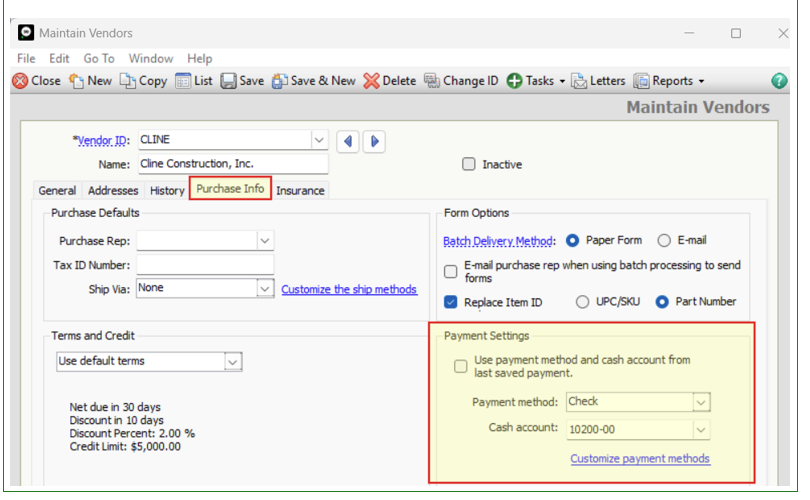
Tip – Writing checks from several different checking accounts.
Did you know you can assign a specific checking account to a vendor? Go to the Purchase info tab, and choose the payment setup.
Become the Sage 50 Expert You’re Meant to Be
Ready to take your Sage 50 skills to the next level?
If you’re a visual learner who thrives with clear, step‑by‑step guidance, our Sage 50 Study Guides are your perfect learning companion. Each guide is designed to walk you through real tasks with easy-to-follow instructions, helpful screenshots, and practical examples you can apply right away.
Why You’ll Love Them
 Simple, structured lessons that build confidence fast
 Visual, step-by-step instructions—no guesswork
 Real-world examples that make accounting workflows click
 Learn efficiently—even with a busy schedule
Whether you’re just getting started or looking to sharpen specific skills, these guides make mastering Sage 50 faster, easier, and far less overwhelming.
Study Guides are for Sage 50 U.S. version 2022 or higher
We ship study guides within the continental United States only.
Shipping Rates: ● Up to 3 guides: $7.50 ● Each additional guide: $2.50
Expedited Shipping (FedEx): Flat rate of $45.00 per order
Subjects Include: (*Our most popular study guides— that we keep stocked and ready to ship.)
*Sage 50 US Core Accounting v22-
From everyday transactions to advanced features, this guide gives you the skills to work faster, smarter, and with total confidence in Sage 50—so you can spend less time figuring things out and more time running your business
Sage 50 US Data Management v22-
Take full control of your Sage 50 system behind the scenes! This guide shows you how to secure your data, manage user access, and protect your company files with confidence. Learn essential skills like setting up user security, running data checks, and backing up your system—so you can prevent problems before they happen and keep your business running smoothly.
*Sage 50 US Designing Forms & Financials v22-
Go beyond standard reports—learn how to design custom financial statements and forms that give you clearer, more meaningful insights into your business.
Sage 50 US Inventory Guide v22-
Master inventory management in Sage 50—learn how to set up, track, and optimize your inventory for better accuracy, efficiency, and reporting.
Sage 50 US Job Costing v22-
Master job costing in Sage 50—track expenses, analyze profitability, and gain the insights you need to make every project more profitable.
*Sage 50 US Payroll Guide v22-
Take the stress out of payroll! This guide gives you everything you need to set up employees, process payroll with confidence, and manage taxes and reports accurately. From basic setup to advanced payroll tasks, you’ll gain the skills to run payroll smoothly, stay compliant, and avoid costly mistakes.
Sage 50 US Quantum Advantage v22-
Go beyond the basics—master the exclusive features of Sage 50 Quantum to work smarter, faster, and at a more advanced level.
Sage 50 US Time & Billing v22-
Master time tracking and billing in Sage 50—capture billable hours, streamline invoicing, and get paid faster with confidence.
Start Learning Today
You can order you training guides by visiting our website.
Merchant Payment Solutions Designed Around Your Business
How Are You Processing Payments Today?You just sold a product online, you could handle payments manually:Call the customer to collect their credit card numberProcess the paymentMark the invoice as paid in Sage 50Batch out credit cards at the end of the dayCreate a deposit in Sage 50 for total cards processedFollow up manually if the invoice isn’t paidThat’s a lot of time and effort!  |
Or… Automate the Entire Process Instead, you can simply email your customer a secure payment link for credit card or ACH.Create invoice in SageEmail customer invoiceYou’re done-automation takes care of the rest. Even Better… Automatic reminders: If the invoice isn’t paid on time, the system sends past-due notices for you Automatic reminders: If the invoice isn’t paid on time, the system sends past-due notices for you Flexible payment options: Accept credit cards or ACH Flexible payment options: Accept credit cards or ACH Offset processing fees: Option to pass along part of the credit card fee to your customer Offset processing fees: Option to pass along part of the credit card fee to your customer |
1) 2) 2) |
3) |
4) 5) 5) 6) 6) |
7) 8) 8) |
 9) Once the customer finalizes the payment, the invoice is marked as paid in Sage 50. All payments are batched at the end of the day. The deposit ticket has already been created for you in Sage 50. 9) Once the customer finalizes the payment, the invoice is marked as paid in Sage 50. All payments are batched at the end of the day. The deposit ticket has already been created for you in Sage 50. |
| Are you ready to simplify your payment process and collect your money faster? |