BBS MONTHLY BUZZ
A monthly email newsletter from Best Business Strategies
|
|
|
|
In this issue:
● Sage 50 2026.1 Yellow Light Proceed with Caution
● Sage 50 2026.1 What’s New Recap
● Inside 2026.1: New AR & AP Automation Tools
● August Sage 50 Tip or Trick
● Get a Head Start on Holiday Card Shopping
|
|
|
|
💻To ensure an optimal experience on our website and all attached links, we recommend utilizing either Google Chrome or Microsoft Edge as your web browser.
|
|
|
|
Still Yellow Light for 2026.1: Proceed with Caution
|
|
|
|
|
|
|
Last month we recommended holding off entirely on the Sage 50 2026.1 update. We are still not comfortable giving a green light. We’re moving from a stop light to a yellow flag—proceed with extreme caution.🚨 If you decide to install the update, please review the critical steps below first.
|
|
|
|
Before you try to install anything, please back up your company files! Since we still advise proceeding with caution, we recommend testing the update on a standalone computer first. Be sure to do this on a slow day—if the installation runs into a snag, it could take Sage Support a few hours to resolve, which could temporarily take your system offline. If you have an active payroll subscription and haven’t installed the 2nd July 2026 Sage 50 Payroll Tax Update, take the payroll update before installing Sage 50 2026.1.
Here are some known issues that could happen and solutions:
-
Issue- If the company doesn’t open when clicking OK at the login prompt : Solution
-
Issue- Error: “One or more data files…belong to another company” after conversion: Solution
-
Issue- Passwords do not work: Solution
Sage Technical Support 866-747-3888
|
|
|
|
Sage 50 2026.1 Feature Recap
|
|
|
|
|
The Sage 50 2026.1 update brings powerful automated workflows, enhanced security, and streamlined payment solutions designed to save time and reduce manual data entry.
This update applies to all Pro, Premium, and Quantum editions of both desktop and hosted Sage 50 Accounting.
Here is a breakdown of the top features and key enhancements in this release:
|
|
|
|
|
Resolved Issues
Email Integration: Fixed webmail installation errors to enable sending emails via Microsoft 365 Outlook from Sage 50.
Serial Numbers: Auto-populates serial numbers during installation for easier setup.
Messaging & Links: Clarified obsolescence messaging by removing outdated article references, and removed dead links for retired Sage One and SBCA integrations.
Banking & Payroll Enhancements
- Expanded Banking Integrations- Direct browser-based authentication now makes connecting with major financial institutions—including Capital One, BMO, J.P. Morgan Access, and Goldman Sachs—more secure and reliable. Bank feeds sync automatically to keep your registers accurate without manual intervention.
- Retirement Super Catch-Up (Payroll):-Stay fully compliant with updated IRS rules. You can now easily configure
super catch-up contributions for eligible employees aged 60 through 63.1
- Expanded Special Fields-Sage has increased the available special payroll calculation fields from 5 to 15, giving you greater flexibility for custom payroll formulas and complex state-specific tax rules.2
Other Enhancements
-
Unified Sage Account Login- Sage has simplified user access across its entire ecosystem. With single sign-on (SSO) authentication, you can now securely log in across Sage applications using a single set of credentials.4
-
AI Document Capture3 & Integrated Invoice Payments5– Find out more in our feature spotlight article below.⬇️
1 & 2- You need a service plan that includes payroll.
3- AI Document Capture requires an active Sage 50 subscription and is not available in Accountant Edition. Accountants should use AutoEntry, which is purpose-built to automate entry.
4-Sage account login requires an active Sage 50 subscription.
5 -Invoice Payments requires an active Sage 50 subscription.
|
|
|
|
Sage 50 2026.1 Spotlight: AR & AP Automation Features
|
|
|
|
Sage is committed to leading the way with AI-powered solutions that help you work smarter and save time. The Sage 50 2026.1 update introduces powerful new features—AI Document Capture and Integrated Invoice Payments (via Fortis)—designed to reduce manual data entry and help you get paid faster. These new features will be available after you install the Sage 50 2026.1 update and launch the application for the first time
|
|
|
|
AI Document Capture (Accounts Payable)
|
Sage 50 AI Document Capture is an automated accounts payable (AP) tool built directly into Sage 50. It uses machine learning models to automatically extract, classify, and enter invoice and credit memo details into your accounting system—eliminating the need for repetitive manual data entry.
|
|
|
|
How It Works
1. Upload Documents: Upload supplier invoices, receipts, and credit notes in formats like PDF, JPG, PNG, or TIFF, or forward them directly to a custom automated email address assigned to your account.
2. Automated Extraction & Matching: AI scans the files to read line items, dates, vendor names, tax rates, and total amounts. It then automatically matches the invoice details to existing vendors and inventory/service items in your system.
3. Review & Post: Sage 50 prepares a draft purchase invoice or vendor credit memo pre-filled with the extracted data. You retain full control to review, edit details, or attach a side-by-side view of the original document before approving and posting it.
4. Continuous Learning: The AI continuously learns from user feedback and corrections, improving its accuracy over time.
|
|
|
|
Watch this video to see AI Document Capture in action⬆️
|
|
|
|
AI Document Capture is available to customers with an active Sage 50 subscription or cloud-connected plan. The feature is supported only for businesses that have ONE company in Sage 50. It is not available in the Accountant Edition. Accountants are encouraged to use AutoEntry instead.
To help manage usage, AI Document Capture operates on a monthly credit system. Active subscribers receive 25 credits per month, and a credit is only consumed when a transaction is successfully posted. This provides a simple and predictable way to process documents. If additional capacity is needed, extra credits can be purchased.
|
|
|
|
Integrated Invoice Payments (via Fortis) (Accounts Receivable)
|
|
|
|
Integrated Invoice Payments via Fortis makes it easier than ever to get paid faster. Businesses can now send invoices with secure built-in Pay Now links, allowing customers to conveniently pay online using a credit card or ACH bank transfer. By streamlining the payment process and reducing the need for manual follow-up, this feature helps improve cash flow, accelerate collections, and create a better payment experience for customers, all from within your Sage environment.
|
|
|
|
How It Works
1. Send Digital Invoices: When emailing sales invoices to customers from Sage 50, a secure “Pay Now” button or link is automatically included on the document.
2. Flexible Payment Options: Customers click the link to pay online using credit cards, debit cards, or ACH/e-check direct bank transfers.
3. Automated Ledger Updates: Once the payment is completed, transaction data flows directly back into Sage 50. The software updates the general ledger, applies the payment to the customer’s invoice, and prepares the transaction for bank reconciliation.
Integrated Invoice Payments is an optional feature available to Sage 50 customers with an active subscription and a Fortis merchant account. Pricing varies based on transaction volume and individual business requirements.
|
|
|
Watch this video to see integrated payment integration in action.
|
|
|
|
August Sage 50 Tips & Tricks
|
|
|
|
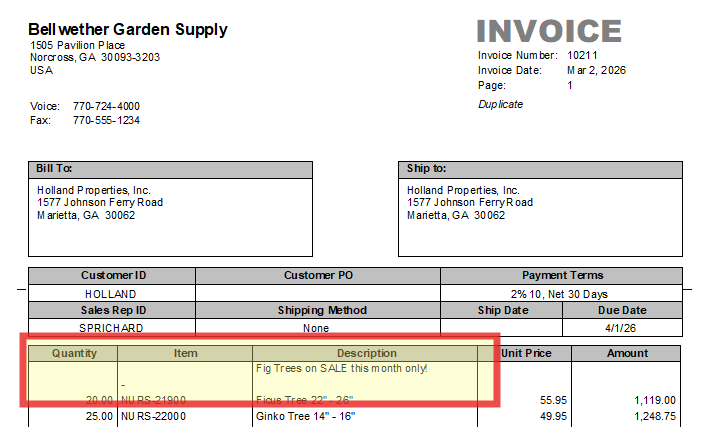
Two ways to add customized messaging to quotes, sales orders, proposals, or invoices.
|
|
|
|
Adding personalized messages to your invoices does more than just convey information—studies show it strengthens client connections and promotes faster, more reliable payments. Sage 50 offers a straightforward way to include custom notes and reminders on every bill you send. Here is how to add custom invoice comments in Sage 50 in just a few clicks.
|
|
|
|
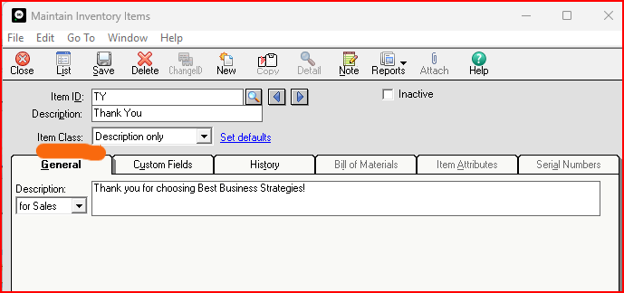
Method 1: Use “Description Only” Items Save time by creating reusable “Description Only” items for frequent notes. Once configured, you can add standard messages like “Thank You” to any invoice in just one click.
This is a Description Only “Item Class” Inventory Item:
|
|
|
|
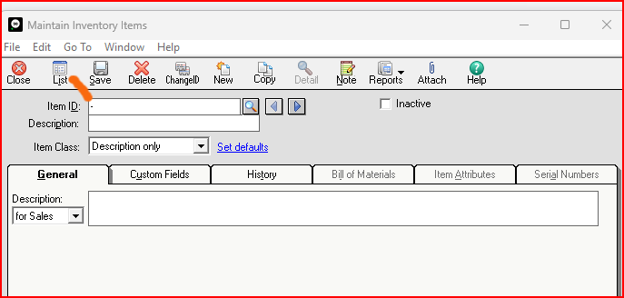
This description adds a space:⬇️
|
|
|
|
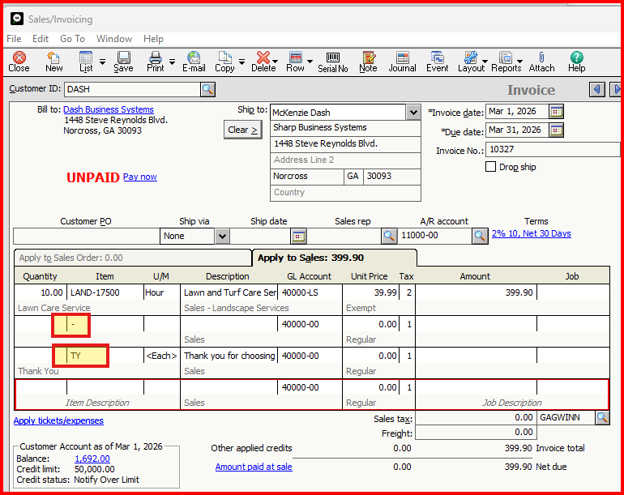
Build your quote, sales order, proposal, or invoice as you normally would, and add your newly created item to the
“Description Only” line items to enhance it. And voilà! You’ve got a quick, professional customer appreciation message seamlessly built right into your workflow.
|
|
|
|
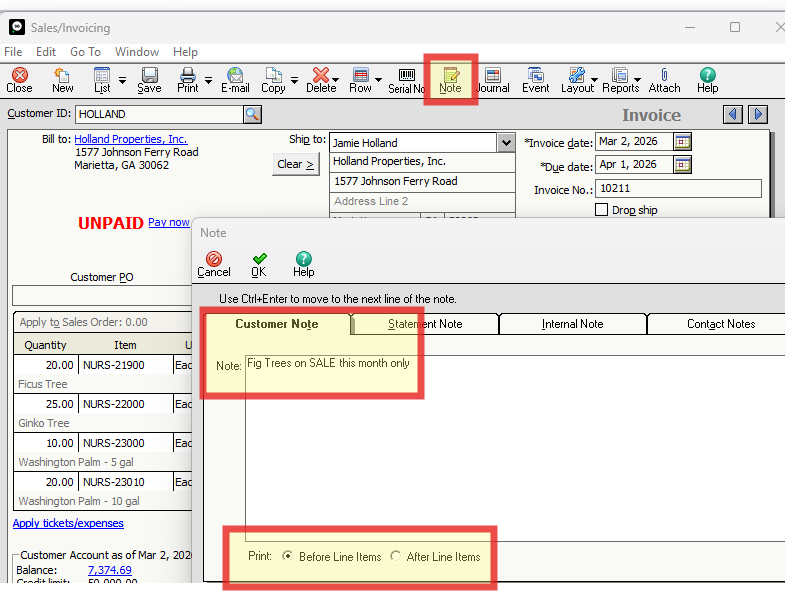
Method 2: Use the Note Feature for Custom Messages Create personalized, customer-specific messages on the fly by using the built-in Note feature. This allows you to add tailored comments or specialized reminders directly to individual transactions.
Click Note in the top menu bar, enter your text, and choose to place it at either the top or bottom of the invoice.
|
|
|
|
To ensure clean formatting, insert a hyphen (-) either before or after the line items. This creates a visual separator between your items and the message.
|
|
|
|
Now you have two quick and easy ways to show your appreciation and thank your customers on every transaction!
|
|
|
|
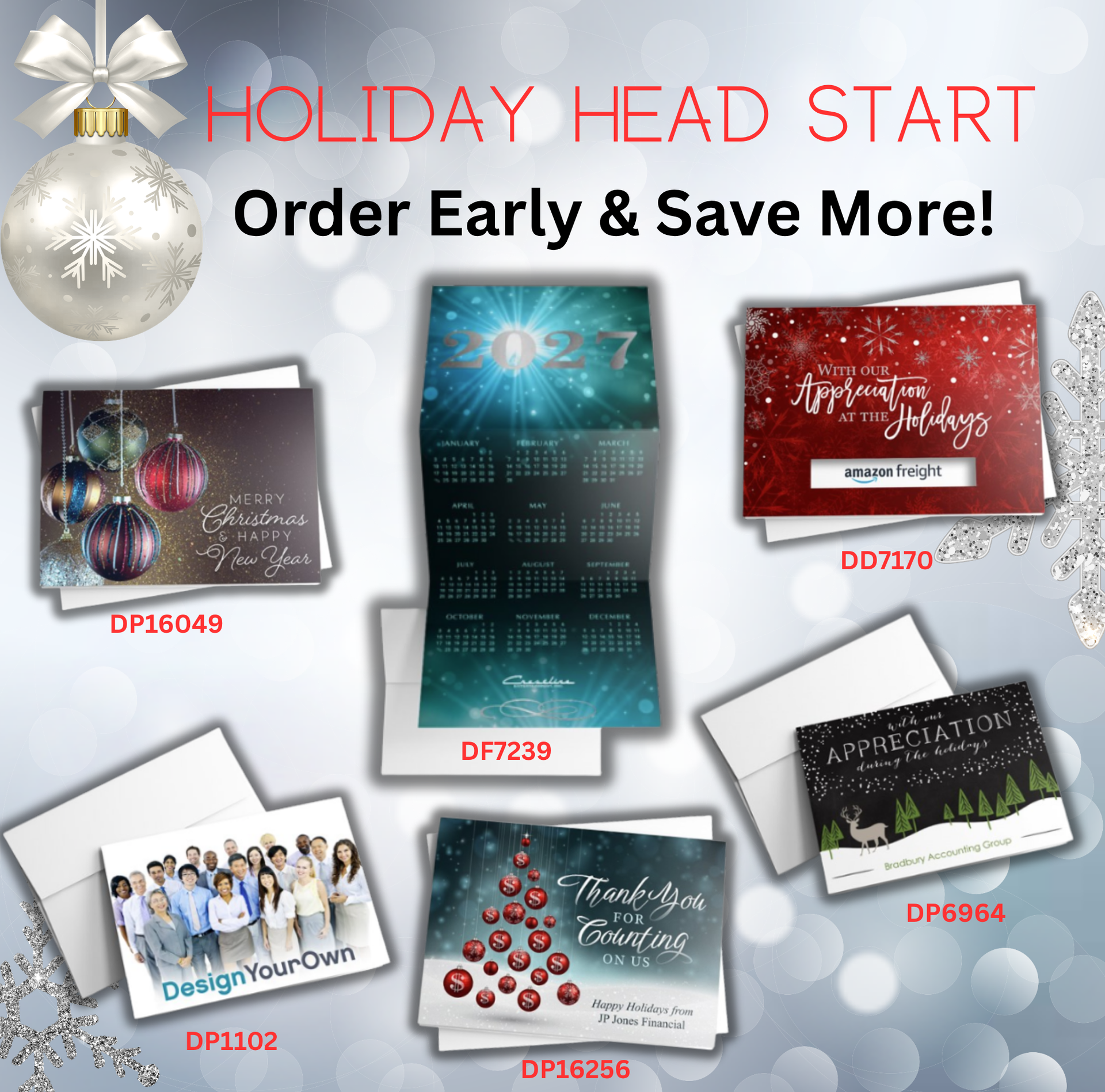
Beat the Holiday Rush – Order Your Holiday Cards Early!
|
|
|
|
|
|
|
The holiday season will be here before you know it, and now is the perfect time to get ahead of the rush!
Choose from thousands of beautiful holiday card designs to fit every style, industry, and budget. Whether you’re sending warm wishes to clients, customers, friends, or family, you’ll find the perfect card to make a lasting impression.
-
Thousands of Designs to Choose From
- Personalized Messages Available
- Add Your Company Logo, Signature, or Photos
- High-Quality Printing & Professional Presentation
-
Order Early for the Best Selection
|
|
|
|
|
Let me help you create the perfect holiday card that reflects your brand and spreads holiday cheer. Contact me to get started!
|
|
|
|
|
|
💡Visit our Blog for archived text-only past issues of our newsletter.
|
|
|
|
Best Business Strategies Communication Schedule
|
|
|
|
We use Act! Marketing Automation for our BBS Buzz Newsletter. If you would like to learn more, please get in touch with Allen Byard at 304-233-2612.
|
|
|
|
|






 5.0
5.0 verified by TrustindexTrustindex verifies that the company has a review score above 4.5, based on reviews collected on Google over the past 12 months, qualifying it to receive the Top Rated Certificate.