

As payroll rules around overtime become more detailed in 2026, businesses using Sage 50 must ensure their processes are accurate and compliant. This blog walks through one way to manage payroll overtime in Sage 50.

Meet Francesca
Francesca is a cashier at the Bronto Boutique and makes $10.00/hr. This week, she worked 44 hours.
Below is a way to record half-time overtime in Sage 50.
Assuming you already have Regular pay and Overtime fields established, you will need to create a new pay field for Overtime Premium pay. *The Overtime Premium field will only represent the “half” portion of overtime.
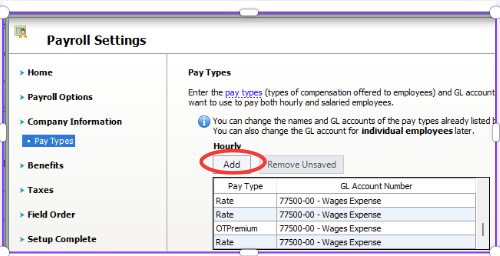
In Sage, go to the top menu bar and select “Maintain tab” ➡️select “Payroll tab”. ➡️select “Payroll Settings tab” ➡️select “Company Information tab“➡️select “Pay Types tab”.
Select the “add button” and create a new field by renaming one of the “rate fields”. I named mine OTPremium. Then select “Finish”.
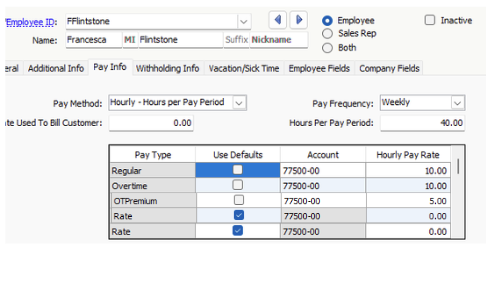
You will need to open your employee’s record and update their overtime rates. Francesca makes $10.00 per/hr. Her overtime rate would be $10.00. Her OT Premium rate (half-time) would be $5.00.
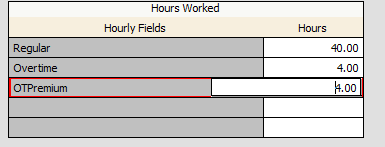
Francesca worked 44 hours. When you enter her time, enter 40 hours reg, 4 hours overtime, and 4 hours OTPremium.
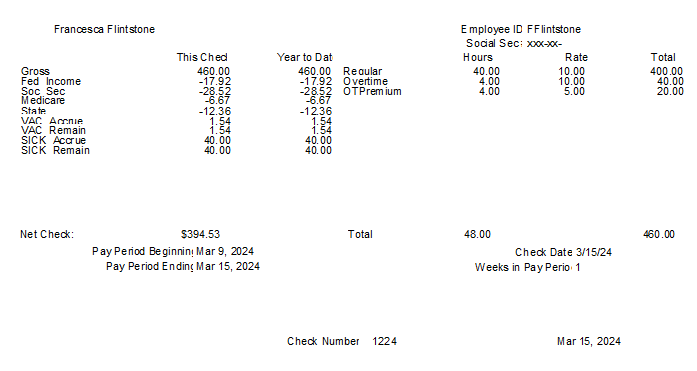
Here is Francesca’s pay stub. At the end of the year, OTPremium (qualified overtime compensation) should be reported on your Form W-2 in Box 12.